
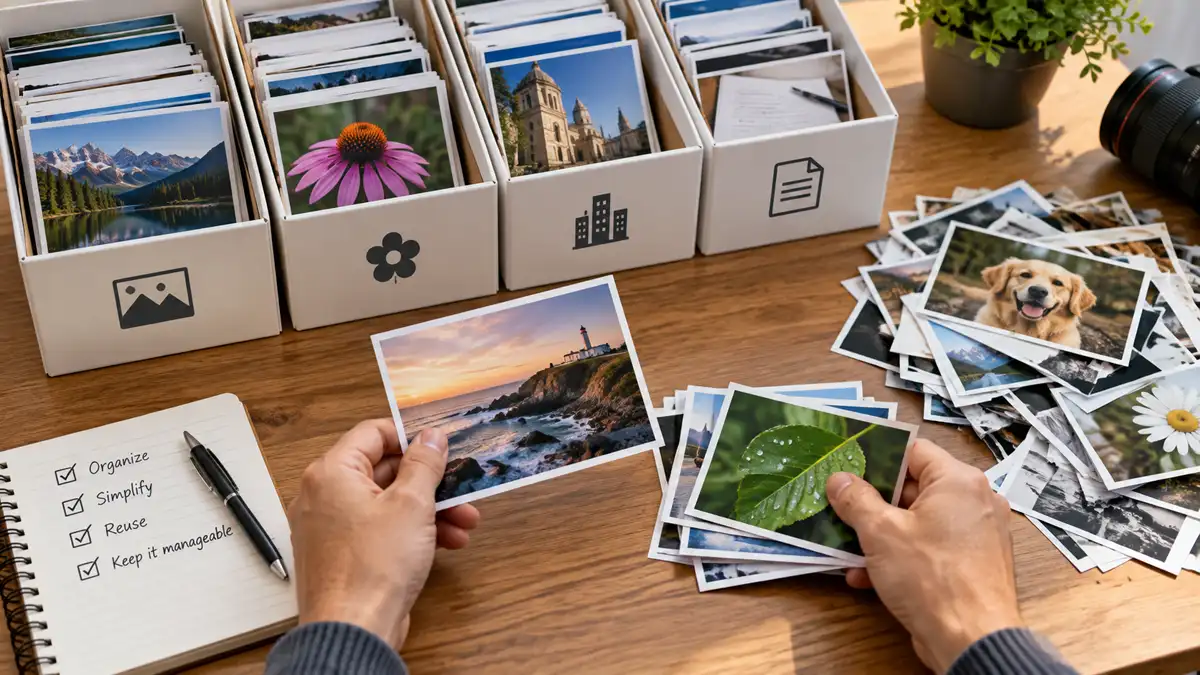
Uploading an image or document to Joomla takes only a few moments. Managing hundreds or thousands of those files over the life of a website is a different problem and can cause several unexpected consequences without organization.
Media libraries tend to become difficult gradually. Files accumulate with unclear names, similar images are uploaded more than once, folders lose their original purpose, and older media may remain in use long after anyone remembers where it appears. None of these problems seem serious when a site is small, but together they can make routine content work and later cleanup unnecessarily difficult.
A manageable Joomla media library does not require an elaborate filing system. It requires a few consistent decisions about where files belong, how they are named, what should be prepared before upload, and how existing media should be treated once other parts of the website reference it.
Understand What Joomla's Media Manager Is Managing
Joomla's Media Manager provides a central interface for working with media files available to the website. Depending on the site's configuration, this can include images, documents, and other permitted file types organized into folders.
The important distinction is that Media Manager is not simply a collection of images waiting to be inserted into articles. Once a file is selected or referenced elsewhere on the website, its location can become part of the site's content structure.
This means media management has two sides. There is the immediate task of uploading and organizing files, and there is the longer-term responsibility of keeping those files predictable enough that they can be found, reused, maintained, and eventually removed safely.
Choose a Folder Structure Before the Library Gets Large
A small website can function with most of its images in one location. As the library grows, however, finding the correct file becomes harder and similarly named files become easier to confuse.
Folders can provide useful separation, but the goal is not to create the deepest possible hierarchy. A good folder structure reflects distinctions that are likely to remain useful over time.
- Organize around durable purposes. Separate files when there is a meaningful reason to manage them as different groups, such as article imagery, downloadable documents, or another recurring type of site content.
- Keep the structure understandable. Someone maintaining the website later should be able to make a reasonable guess about where a file belongs.
- Avoid unnecessary nesting. Several layers of narrowly defined folders can make navigation harder without providing a corresponding organizational benefit.
- Use folder names consistently. Predictable naming makes it easier to recognize locations and reduces the temptation to create another folder for essentially the same purpose.
The best structure is therefore not necessarily the most detailed one. It is the simplest structure that continues to make sense as more media is added. The same principle of avoiding unnecessary complexity also applies when structuring content with Joomla categories, even though categories and media folders serve different purposes.
Use Filenames That Will Still Make Sense Later
File naming is one of the simplest ways to make a media library easier to understand. A filename should provide enough context that it still makes sense when viewed outside the article or page where it originally appeared.
Consistent filenames also reduce the likelihood of ending up with vague files such as image1.jpg, final-image.jpg, or several nearly identical variations that are difficult to distinguish later.
- Use descriptive names. Identify the subject or purpose of the file rather than relying on a generic label.
- Use lowercase consistently. This keeps naming predictable and avoids unnecessary variation.
- Use hyphens between words. A filename such as
joomla-media-manager-folders.jpgis easier to read and manage than one containing spaces or inconsistent separators. - Avoid temporary naming. Terms such as
new,final, orupdatedoften lose meaning as the website changes. - Distinguish intentional variants. If multiple versions of an image are genuinely required, use filenames that explain the difference rather than adding an unexplained number.
Good filenames are especially valuable because changing them later may affect any content that already references the existing file path. Choosing a useful name before upload is usually easier than correcting an established one later.
Prepare Media Before You Upload It
Media organization starts before a file reaches Joomla. Uploading an image exactly as it came from a camera, design application, screenshot tool, or stock source can introduce oversized files, unnecessary dimensions, unclear filenames, and versions that were never intended for publication.
Before uploading a file, check a few basic details:
- Is this the version that is actually going to be used?
- Does the filename follow the site's naming convention?
- Are the image dimensions appropriate for where it will appear?
- Is the file size reasonable for its purpose?
- Is the file format appropriate for the type of media being published?
- Does a suitable version already exist in the media library?
This is not a substitute for a full image-optimization workflow. The point is simply to avoid sending unnecessary problems into the media library when they can be corrected beforehand.
Unnecessary media also has consequences beyond the Media Manager itself. Oversized images, abandoned versions, and duplicate files can gradually increase the amount of storage the website requires. Because those files may also become part of website backups, migrations, and other site-management operations, a media library that grows without much discipline can eventually make those tasks considerably heavier than they need to be.
Avoid Creating Duplicates You Cannot Identify Later
Duplicate media often appears for ordinary reasons. An editor cannot find the original file, a similar image is uploaded under a different name, or a replacement is added without determining whether the older version is still required.
Not every duplicate-looking file is unnecessary. A website may legitimately need different crops, dimensions, formats, or versions of the same source image. The problem begins when those differences are not obvious.
| Situation | Better approach |
|---|---|
| The same file is uploaded again because the original cannot be found | Search the existing media structure before creating another copy |
| Several versions are required for different uses | Name each version so its purpose or dimensions are clear |
| An older image is being replaced | Determine whether the original is still referenced before removing it |
| Two files appear nearly identical | Confirm whether they serve different purposes before keeping both |
The goal is not to eliminate every repeated asset. It is to make intentional variations distinguishable from accidental clutter.
Treat Existing Media as Referenced Content
A media file may begin as a simple upload, but that changes once it is used somewhere on the website. An article, module, custom field, template-related setting, or another part of the site may store a reference to that file.
This is why an established media library should not be treated like an ordinary folder on a personal computer. Moving a file into a more convenient folder or giving it a better name may seem like harmless organization, but existing references can still point to its previous location.
Think about media organization before upload whenever possible. It is much easier to choose an appropriate folder and filename before a file is used than to reorganize it after multiple parts of the website may already reference it.
The longer a website has been operating, the less safe it is to assume that an unfamiliar file is unused simply because its purpose is not immediately obvious.
Be Careful When Renaming, Moving, or Deleting Files
Joomla provides tools for managing files, but the ability to rename, move, or delete a file does not mean the change is automatically safe for existing content. The important question is whether anything on the website still expects that file to exist at its current path.
Before changing an established media file, consider:
- Where is the file currently used? Check articles and other content where the media is likely to appear.
- Could it be referenced outside an article? Modules, fields, template settings, extensions, or other site features may also use media.
- Are you replacing the file or its reference? Uploading a replacement under a new filename does not automatically update content that points to the old one.
- Can the result be verified? After making a change, check the affected pages rather than assuming the new media path is working everywhere.
Do not delete media solely because it looks unused. If a file is still referenced somewhere on the website, removing it can leave missing images, broken downloads, or other incomplete content.
For a small site, checking references may be straightforward. On a larger or older site, determining whether a file is genuinely unused can require more investigation. When there is uncertainty, preserving the file until its references can be confirmed is usually safer than aggressive cleanup.
Use Joomla's Media Tools From the Editor
When working with Joomla's default TinyMCE editor, media can be selected through Joomla's CMS Content tools. For images managed through Joomla, the CMS Content → Media option provides a direct route into Joomla's media-selection workflow.
This helps keep image selection connected to the same media structure used elsewhere in the site rather than treating each article as an isolated place to manage files.
TinyMCE also provides image- and media-specific controls, but they should not be treated as interchangeable with Joomla's CMS-integrated Media option. For routine images and files managed through Joomla, CMS Content → Media is generally the most appropriate starting point, while the other controls remain useful when their more specific functions are required.
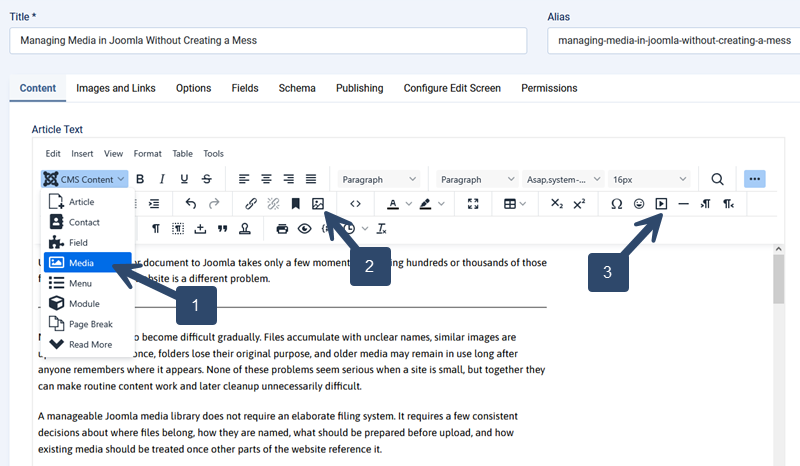
- CMS Content → Media: The preferred starting point for selecting images and files managed through Joomla's Media Manager.
- Insert/Edit Image: TinyMCE's image control, useful when working directly with an image and its image-specific settings.
- Insert/Edit Media: TinyMCE's broader media control, useful for media such as video URLs or embed code.
Third-party editors can present these choices differently. JCE Editor, for example, provides its own media-management tools and interface. The underlying organizational principles remain the same, but this article uses Joomla's default TinyMCE editor as its reference point.
Keep Accessibility Information in the Content Context
Organizing the file itself is only part of managing media. When an image is placed into content, information such as alternative text and captions should describe how that image is being used in that particular context.
This distinction matters because the same image can potentially serve different purposes in different places. A filename should help identify and manage the file, while alternative text should communicate the relevant meaning of the image where it appears.
- Use filenames for file identification. They should help maintainers recognize the asset in the media library.
- Use alternative text for content meaning. Describe the meaningful information the image contributes where it is used.
- Use captions when they add useful context. A caption should provide information for the reader rather than merely repeat the filename or alternative text.
Keeping these responsibilities separate produces better results than trying to make a filename, caption, and alternative text all perform the same job.
Clean Up Media Deliberately, Not Aggressively
A well-managed media library still needs occasional review. Old campaigns end, articles are replaced, downloadable files become obsolete, and temporary assets can remain long after their original purpose has disappeared.
Cleanup should nevertheless be based on evidence rather than appearance. An old filename or unfamiliar folder does not prove that its contents are safe to remove.
A useful cleanup process is to identify questionable files first, investigate where they may be referenced, and remove them only when their purpose is understood. If several obsolete files are discovered, making controlled changes in smaller groups makes the results easier to verify.
A tidy media library is not the same as an empty one. The objective is to remove unnecessary clutter without sacrificing files that still support published content or other parts of the website.
Build Media Habits That Scale With the Website
Media management is easiest when the important decisions happen before files accumulate. A predictable folder structure, descriptive filenames, appropriate preparation before upload, and deliberate handling of existing files reduce the amount of corrective work required later.
Joomla provides the tools needed to organize and select media, but those tools cannot determine which organizational system makes sense for a particular website or whether an established file is still important. Those decisions remain part of managing the site's content responsibly.
The objective is not to create a perfectly organized media library. It is to create one that remains understandable enough that files can be found, reused, changed, and eventually removed with confidence as the website grows.
Related Joomla Content Articles
Explore additional articles covering Joomla content organization, structure, and publishing.