
The Joomla Administrator interface can feel overwhelming at first, especially if you are new to the platform or coming from another CMS. This tutorial explains how the admin area is organized, what each major section is responsible for, and how to move around confidently without relying on trial and error.
Before You Start
- You should be logged in as a Super User or Administrator.
- Joomla should be installed and configured.
- No extensions are required.
The Purpose of the Administrator Area
The Joomla Administrator exists to manage the site, not to preview it. While some visual feedback exists, most work here is structural, configurational, or editorial.
Key mindset: The administrator is where you define behavior. The site front-end is where you see the result.
The Main Navigation Structure
The administrator interface is organized into predictable areas that remain consistent across Joomla versions.
Top Navigation Bar
The top bar provides access to system-wide functions.
- System and global configuration access
- User account options
- Help and system information
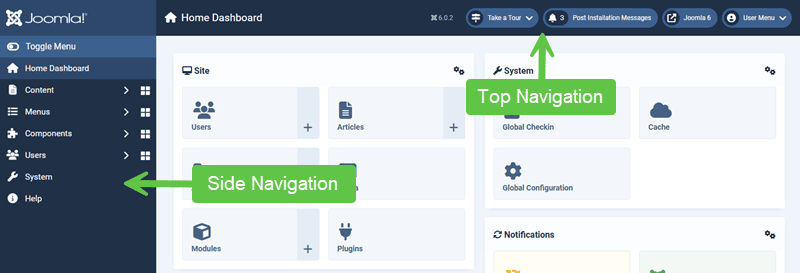
Sidebar Menu
The sidebar is the primary navigation for daily tasks.
Common Sidebar Sections
- Content: Articles, categories, media
- Menus: Menu structures and menu items
- Components: Core and third-party features
- Users: Accounts, groups, access levels
- System: Global configuration, maintenance, updates
Most tasks begin here.
The Dashboard and Its Role
The dashboard provides a high-level overview rather than a control center, including modules that also double as another form of navigation:

Many Ways to Navigate: One thing you will discover is that there is more than one way to navigate your Admin area.
With modules, you can customize what to show and what not to show, but the other benefit is that you can use modules to navigate.
What the Dashboard Is Good For
- Seeing system status at a glance
- Noticing update notifications
- Quick access to common tasks
What It Is Not Good For
- Learning where features live
- Understanding site structure
As experience grows, most administrators spend less time on the dashboard.
Understanding Components vs Sections
One source of confusion is the difference between:
- Sidebar sections (organizational)
- Components (functional)
For example, Articles appear under Content, but they are powered by a core component. Other components may appear directly under the sidebar or nested within it.
Toolbar Actions and Context
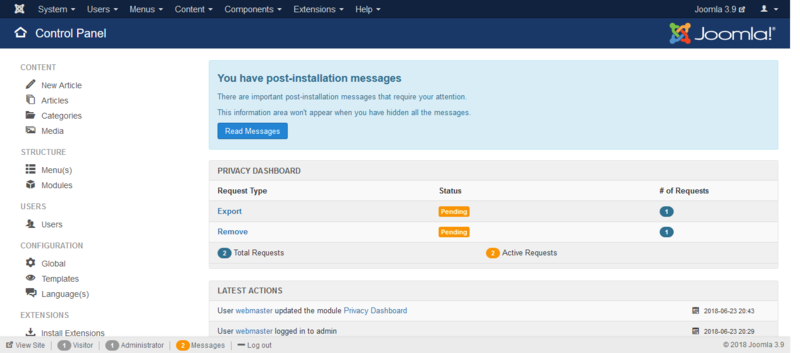
Most admin screens include a toolbar at the top. I remember in the old days, Joomla v3 used to have most of the navigation along the top row with only a basic navigation tree down the side.
Toolbar Actions Are Context-Sensitive
- Buttons change depending on what you are managing
- Some actions only appear after selecting an item
If an option is missing, it is often because nothing is selected.
List Views and Filters
Many administrator screens use list views.
Common List Features
- Status filters (published, unpublished, archived)
- Search fields
- Bulk actions
Learning to use filters saves time and reduces mistakes.
Configuration vs Content Screens
Not all admin screens behave the same way.
Two Common Screen Types
- Configuration screens: Settings, options, system configuration
- Content screens: Articles, categories, menu items
Configuration changes usually affect more than one page. Content changes usually affect only what is displayed.
Why Navigation Confidence Matters
Admins who understand the interface tend to:
- Make fewer accidental changes
- Troubleshoot faster
- Avoid unnecessary extensions
Admins who guess tend to rely on reversions and rework.
Verify Your Results
- You can locate Articles, Menus, Modules, and Users without searching.
- You understand where configuration settings live.
- You recognize the difference between content and system screens.
Common Issues
- “I can’t find a setting I changed earlier.” Configuration may exist at the global, component, or menu level.
- “Buttons are missing.” Toolbar options are context-sensitive.
- “Everything feels scattered.” Familiarity develops with repeated navigation, not shortcuts.
Related Tutorials / Next Steps
- Next: Understanding Users, Permissions, and Roles
- Managing Extensions Safely
- Joomla Configuration Areas You Should Know
Once the administrator interface feels predictable, Joomla becomes much less intimidating and far easier to manage responsibly.