
Extensions are one of Joomla’s strengths, but they are also a common source of instability. This tutorial explains how to install, configure, update, and remove extensions responsibly so your site remains predictable and maintainable.
Before You Start
- You should be logged in as a Super User.
- Joomla should be installed and functioning normally.
- You should understand the difference between components, modules, and plugins.
Start With the Core Before Adding Extensions
Joomla includes a wide range of built-in features. Installing extensions too early often adds complexity without solving the underlying problem.
Common Core Capabilities
- Content management and categorization
- Menus and navigation
- Access control
- Basic SEO and routing
If core features already meet the requirement, an extension may be unnecessary.
Step 1: Evaluate an Extension Before Installation
Every extension becomes part of your site’s long-term maintenance footprint.
Questions to Ask
- What problem does this extension actually solve?
- Is it actively maintained and compatible with your Joomla version?
- Is this extension kept up-to-date by the developer(s)?
- Does it have a history of lots of support requests?
- Does it overlap or enhance with existing functionality?
- What happens if you remove it later?
Step 2: Install Extensions Deliberately
Joomla supports multiple installation methods, but consistency matters.
Recommended Practices
- Use the official installer or Extension Manager
- Install one extension at a time
- Confirm installation messages and warnings
Step 3: Review and Limit Default Configuration
Many extensions enable optional features by default.
After Installation
- Review component options
- Disable unused plugins
- Avoid enabling features “just in case”
Less enabled functionality usually means fewer conflicts.
Step 4: Understand Extension Types
Each extension type affects the site differently.
Key Types
- Components: Core functionality and page output
- Modules: Supporting content blocks
- Plugins: Background behavior and system hooks
Plugins, in particular, can alter site behavior without obvious visual clues.
Step 5: Manage Updates Carefully
Extension updates should be intentional.
Good Update Habits
- Review changelogs before updating
- Update during low-traffic periods
- Test key functionality after updates
Blind updates are a common cause of unexpected breakage.
Step 6: Remove Extensions Cleanly
Disabling an extension is not the same as removing it.
Safe Removal Checklist
- Confirm the extension is no longer in use
- Check with the extension's developer for steps to remove it; there could be a specific routine involved.
- Uninstall using the Extension Manager
- Remove leftover modules or plugins if applicable
Leftover artifacts can cause problems or leave files you don't want to remain in your website or database data.
Verify Your Results
- Extensions are installed intentionally.
- Unused features and plugins are disabled.
- Updates are applied deliberately.
- Removing extensions leaves no clutter.
Common Issues
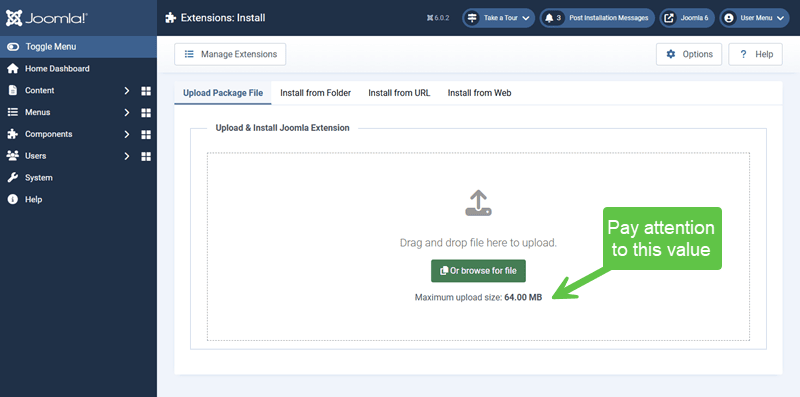
- Upload Limit: In the screenshot above, make note of the value showing, which indicates the size of upload allowed. If it's too small, you will need to increase it by logging into your web host control panel.
- Unexpected problems after installation: Plugin conflicts or default settings.
- Breakage after updates: Compatibility issues or your website crashes due to a 500 server error.
- Extension bloat: Installing tools instead of solving root causes.
Related Tutorials / Next Steps
- Next: Joomla Configuration Areas You Should Know
- Managing Updates Safely
- Removing Extensions Safely
Extensions should earn their place on your site. A smaller, well-understood extension set is almost always easier to maintain.