
Once a basic structure is planned, the next step is to build the core pages of the site. This tutorial walks through creating essential pages in a deliberate order so categories, articles, and menus work together without rework.
Before You Start
- A simple site structure should already be planned.
- You should understand how articles, categories, and menus interact.
- No extensions are required.
Step 1: Create the Core Categories
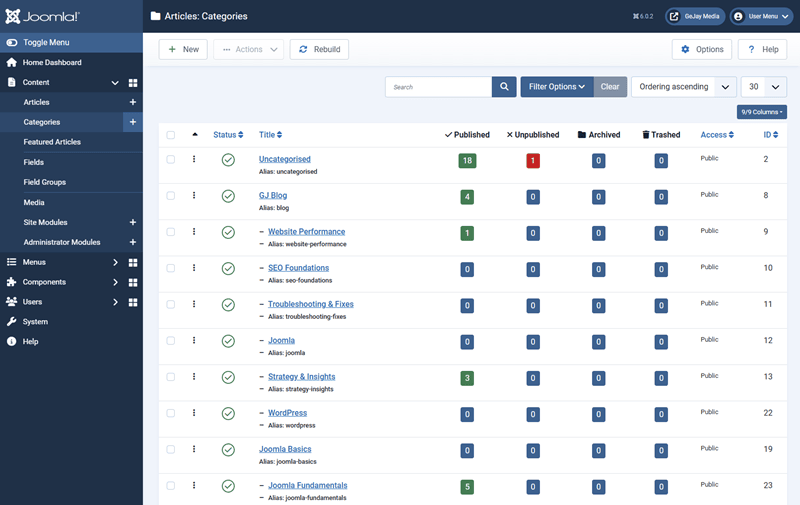
Start by creating the categories that will hold your main content.
Typical Core Categories
- Blog, News, or Updates
- Resources, tutorials, or Guides (if applicable)
These categories act as containers and should remain stable.
Step 2: Create Essential Articles
Next, create the core articles that define the site. These will be your static pages and they will exist in the "Uncategorized" category.
Uncategorized: This is used for a website's static page implementation; pages that are standalone.
Common Core Pages
- Home (if using an article-based home page)
- About
- Contact
- Privacy or Terms (if required)
At this stage, content can be minimal. Structure matters more than polish.
Step 3: Create Menu Items for Core Pages
With articles in place, create menu items to define pages.
Menu Item Guidance
- Use “Single Article” menu items for static pages
- Use category views for sections that will grow
- Assign menu items intentionally to the correct menu
Each menu item now defines a page context.
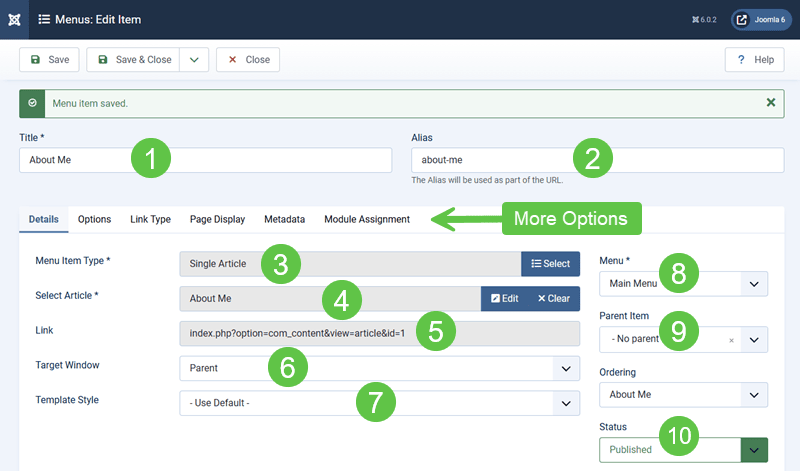
- Title
- Alias (after saving)
- Menu Type
- Selected Article
- Link (the non-SEF URL) for this article
- Target to load the page
- Choosing the layout template
- Menu (which menu is this to go on)
- Parent (will this be a parent or submenu item)
- Status
Step 4: Set the Home Page
Choose which menu item should serve as the home page.
Considerations
- Home can be a single article or a category view
- The home page often has unique layout needs
- Modules may be assigned specifically to the home menu item
Mark the correct menu item as the default.
Step 5: Review Layout and Module Positioning
After creating core pages, review how they behave.
Check For
- Consistent layout across similar pages
- Expected modules appearing in the right contexts
- No unintended overrides
Fixing layout issues now is easier than later.
Step 6: Test Navigation as a Visitor
Switch out of the administrator mindset.
Visitor Perspective
- Is navigation clear?
- Do links lead where expected?
- Does the structure make sense?
Usability issues often surface here.
Verify Your Results
- Core pages exist and load correctly.
- Menus define clear page contexts.
- Layouts behave predictably.
- Navigation is understandable.
Common Issues
- Pages not displaying: Menu items not created.
- Unexpected layout: Menu-level overrides active.
- Navigation gaps: Missing menu items.
Related Tutorials / Next Steps
- Next: Connecting Content, Menus, and Modules
- Creating Menu Items Correctly
- Using Categories Effectively
Building core pages in a deliberate order keeps Joomla predictable and reduces early rework.