
Creating a menu item in Joomla is not just about adding a link to navigation. Each menu item defines a page’s behavior, layout, and context. This tutorial explains how to create menu items deliberately so your site remains predictable and easy to manage.
Before You Start
- You should understand how Joomla menus work conceptually.
- You should know which menu you are editing.
- The content or component you want to link to should already exist.
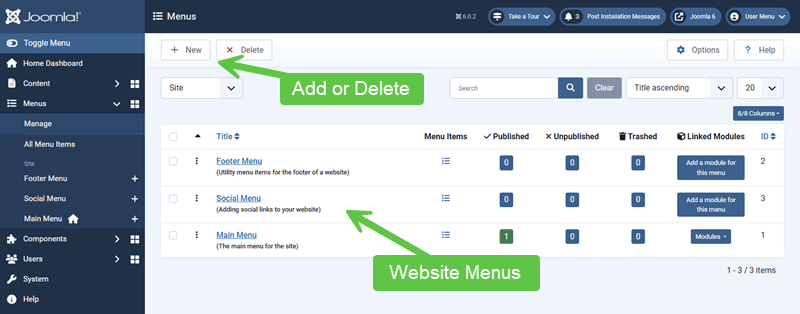
Step 1: Choose the Correct Menu
Joomla supports multiple menus, each with a specific purpose.
Common Menu Choices
- Main menu: Primary site navigation
- Footer or utility menu: Secondary links
- Hidden menu: Structural or layout control
Deciding this first prevents later restructuring.
Step 2: Select the Menu Item Type
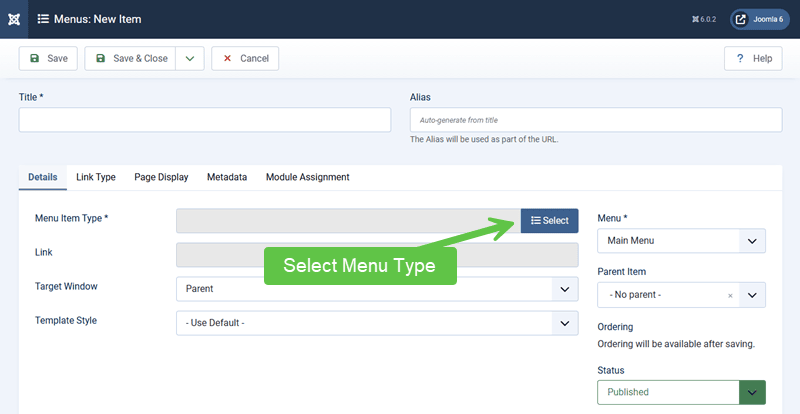
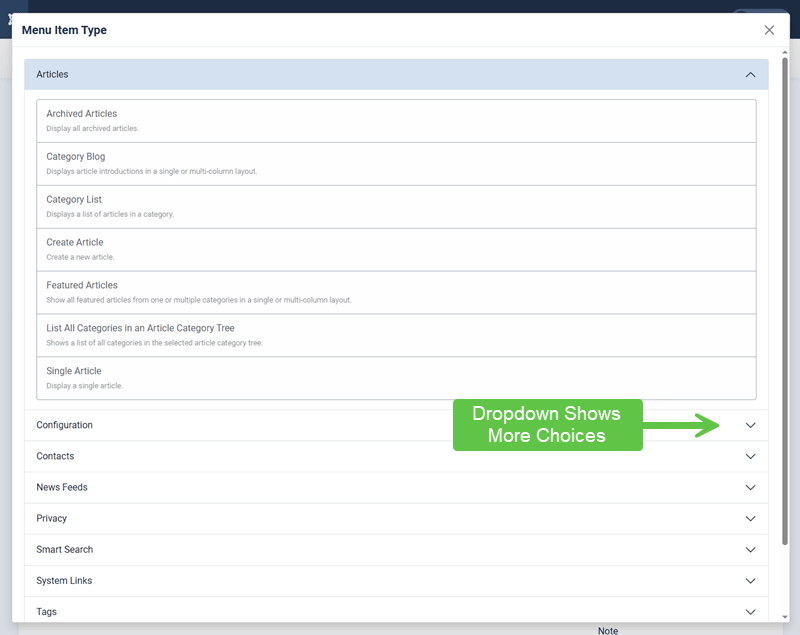
The menu item type determines what Joomla displays on the page.
Common Menu Item Types
- Single Article
- Category Blog or List
- Featured Articles
- Component-specific views (Contact, Search, etc.)
Choosing the wrong type is a common cause of confusion in layout and style.
Step 3: Link the Menu Item to Content
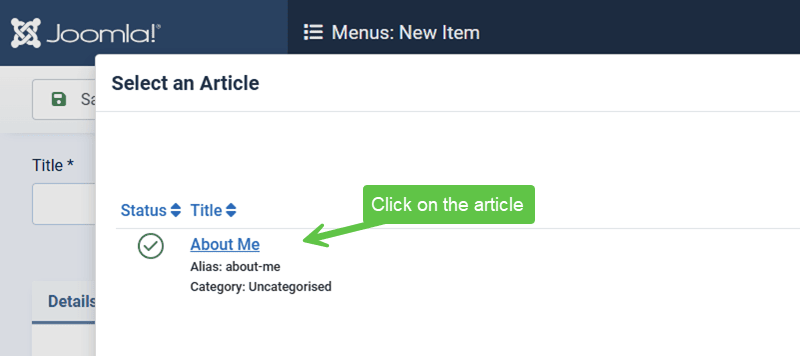
After selecting the type, you choose the content source. Let's use the "Single Article" type as an example and then select the article from the list as the one you want to link to.
Examples
- Selecting a specific article
- Selecting a category to display
- Configuring a component view
The menu item now defines the page context.
Step 4: Review Menu Item Options
Menu items include options that override defaults.
Areas Worth Reviewing
- Layout and display options
- Page title and metadata
- Access level
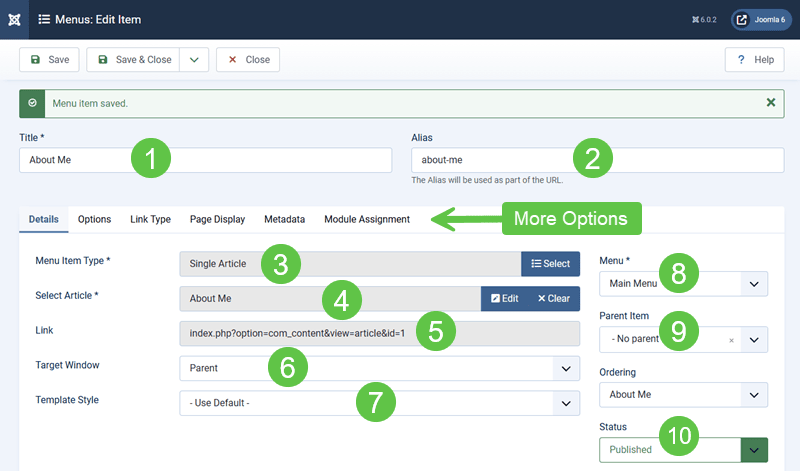
Leaving options untouched usually inherits component defaults. Here is a screenshot showing the menu item settings for this particular menu item type, "Single Article". These settings will change based on the menu item type you choose.
- Title
- Alias (after saving)
- Menu Type
- Selected Article
- Link (the non-SEF URL) for this article
- Target to load the page
- Choosing the layout template
- Menu (which menu is this to go on)
- Parent (will this be a parent or submenu item)
- Status
*There is an "Ordering" option here, but I prefer to drag and drop the menu items in the order I want after saving and closing this item.
Step 5: Set Parent and Ordering Carefully
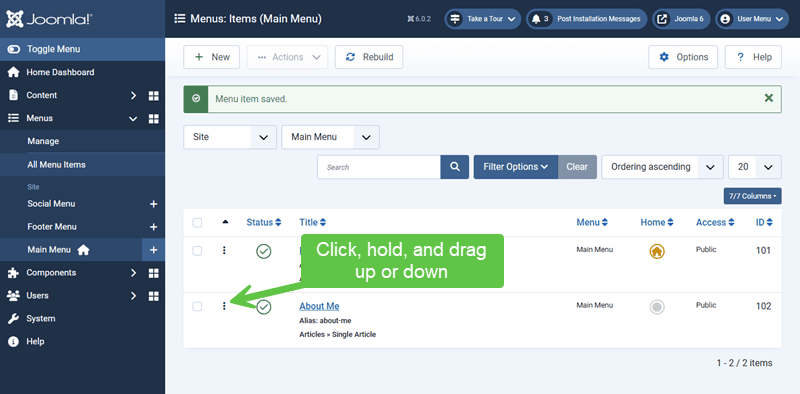
Menu hierarchy affects both navigation and URLs. Luckily, Joomla gives you drag & drop capability to reorganize the order of menu items for a menu.
Best Practices
- Keep hierarchy shallow
- Avoid rearranging published menu items casually
- Be intentional about parent-child relationships
Moving menu items later can change URLs and internal links.
Step 6: Save and Test the Menu Item
After saving:
- Visit the page on the front-end
- Confirm layout and modules behave as expected
- Check the generated URL
Testing immediately avoids compounding errors.
Structural Menu Items (Advanced Pattern)
Some menu items exist only to control behaviour.
Examples
- Hidden menu items for clean SEF URLs
- Layout-specific menu items
- Module assignment anchors
These are deliberate tools, not hacks.
Verify Your Results
- The menu item displays the intended content.
- Layout and modules are correct.
- The URL is clean and predictable.
- The menu hierarchy makes sense.
Common Issues
- Wrong content showing: Incorrect menu item type.
- Unexpected layout: Menu item overrides active.
- Duplicate URLs: Multiple menu items to the same content.
Related Tutorials / Next Steps
- Next: Common Menu Configuration Mistakes
- Linking Content Through Menus
- How Joomla Menus Actually Work
Careful menu item creation is one of the strongest predictors of long-term Joomla stability.