
Articles are the primary content element in Joomla. While creating an article is straightforward, managing articles responsibly involves understanding categories, publishing states, options, and revision history. This tutorial walks through the full lifecycle of a Joomla article from creation to maintenance.
Before You Start
- You should be logged in as a user with permission to create content.
- At least one content category should exist.
- You should know which editor you are using.
Step 1: Create a New Article
Articles are created through the Articles manager.
How to Create an Article
- Go to Content → Articles
- Select New
- Enter a clear, descriptive title
- Select the appropriate category
The title should describe the content clearly. Changing titles later can affect URLs and internal links.
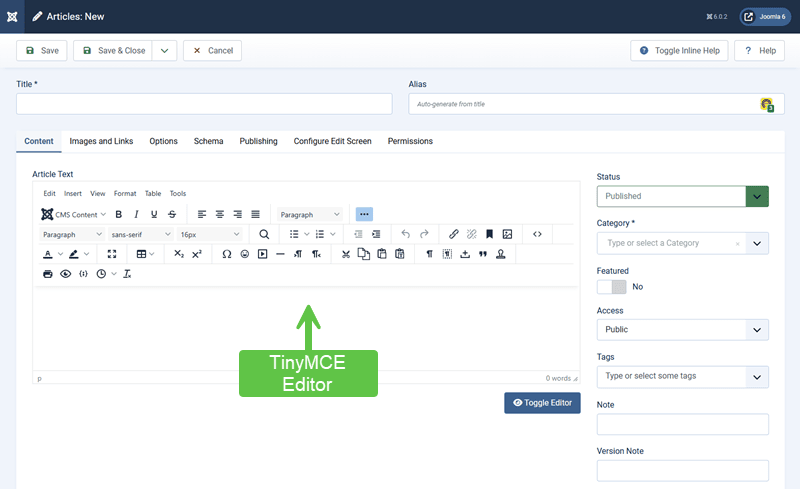
Step 2: Understand Article Fields
An article includes more than just the main content editor.
Key Fields
- Title: Used for display and navigation
- Alias: Used in URLs (auto-generated if left blank)
- Category: Determines structure and organization
- Status: Published, unpublished, archived, or trashed
Leaving aliases auto-generated reduces maintenance unless custom URLs are required.
Step 3: Add and Format Content Carefully
The editor allows rich formatting, but restraint improves consistency.
Recommended Practices
- Use headings for structure, not styling
- Avoid inline styles unless necessary
- Use lists and paragraphs consistently
Over-formatting content often causes template conflicts later.
Step 4: Manage Publishing Options
Publishing controls visibility and timing.
Important Options
- Access level (who can see the article)
- Publish up / publish down dates
- Featured status
Using scheduling options helps manage staged releases without manual intervention.
Step 5: Review Article Options and Metadata
Article options control how content is displayed.
Areas to Review
- Show or hide title
- Intro text vs full text
- Metadata and descriptions
Many display options inherit defaults unless explicitly overridden.
Step 6: Save, Review, and Revise
Joomla supports article versioning. You have the option to disable or enable it.
Why Versioning Matters
- Track changes over time
- Restore previous versions if needed
- Support collaborative editing
Saving frequently and reviewing revisions reduces accidental data loss.
Managing Existing Articles
The Articles list view supports bulk management.
Common Actions
- Filter by category or status
- Batch move or copy articles
- Archive outdated content
Archiving is often better than deleting for long-term sites.
Verify Your Results
- You can create and edit articles confidently.
- Articles are assigned to appropriate categories.
- Formatting remains consistent.
- Publishing states are intentional.
Common Issues
- Articles not appearing: Status, access level, or menu context.
- Unexpected formatting: Editor-generated markup conflicts.
- Accidental overwrites: Versioning not reviewed.
Related Tutorials / Next Steps
- Next: Using Categories Effectively
- Media Manager Basics
- Content Organization Best Practices
Well-managed articles form the foundation of a stable Joomla site. Consistency here pays dividends as content volume grows.