
The first time you log into a new Joomla installation, the administrator interface presents a wide range of tools, messages, and extensions. Most of them are optional, and many will never be used on a typical site. Let's face it, one of the first things people will think when they log into the Admin area is how overwhelming it can look.
Early admin clean-up is not about removing functionality. It is about reducing noise, clarifying what matters, and preventing confusion before real work begins.
This tutorial walks through a practical, post-installation clean-up process focused on first-time site owners. The same principles also apply to existing sites, but the emphasis here is on establishing clarity immediately after installation.
Before You Start
This tutorial assumes a freshly installed Joomla site or a site that has not yet been actively developed.
You should be logged in as a Super User. No extensions will be uninstalled, and no data will be removed.
This tutorial focuses on unpublishing and disabling features you do not need right now. Removal can be considered later, once the site’s direction is clear.
Starting with the Administrator Dashboard
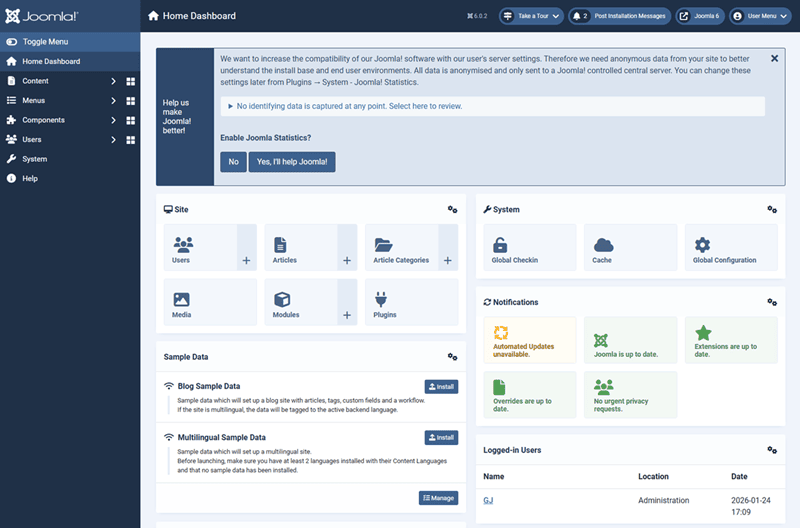
The administrator dashboard is the first screen most users see after logging in. By default, it contains several modules intended for onboarding and general awareness.
For many site owners, these modules are useful once, but then they become visual clutter.
Common candidates for review include:
- Post-installation messages (after they are read)
- Help Joomla become better with a participation message
- Sample data installation prompts
- News and update-related panels
- Statistics or activity summaries that are not yet relevant
These modules can be unpublished without affecting site functionality.
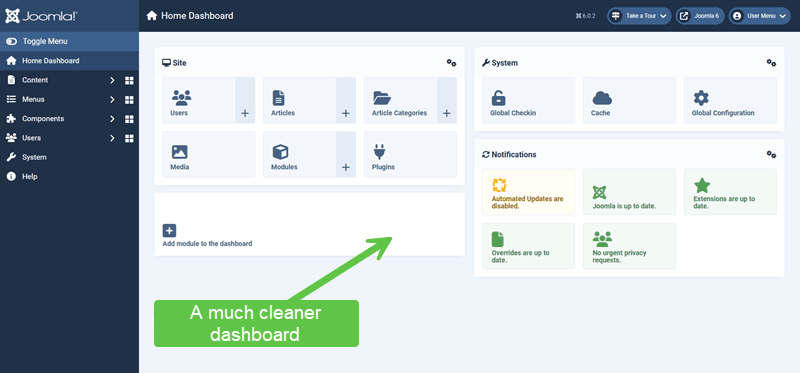
Although the screenshot above shows a much cleaner dashboard, you can still go further by unpublishing more modules, or you can edit an existing module. Basically, you want to only show what is relevant to your website.
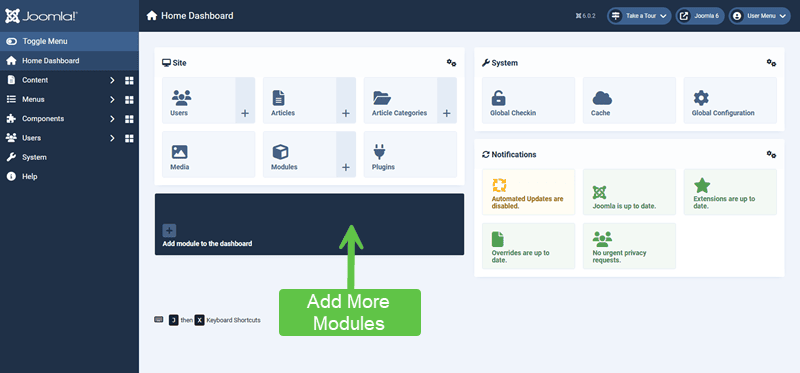
You also have the option of adding more modules by clicking on the Add Module to the Dashboard box:
Handling System Messages Intentionally
Joomla displays system messages to communicate important information, especially after installation.
Before hiding or dismissing them:
- Read each message carefully
- Confirm whether any action is required
- Document anything that may be relevant later
Once reviewed, these messages can be hidden to reduce distraction.
Reviewing the Components Menu
After the dashboard, the next logical step is the Components menu.
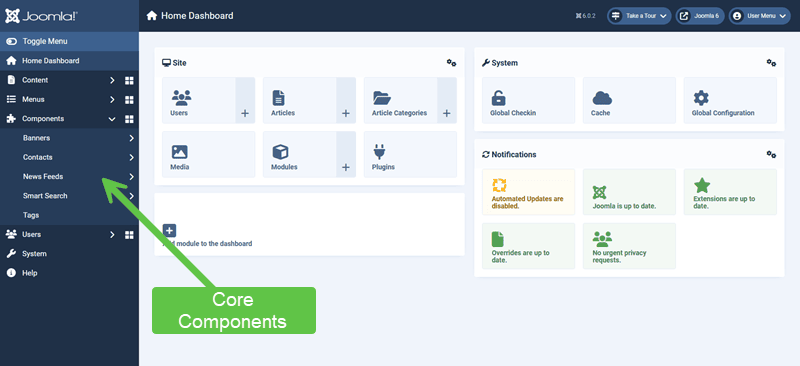
Not every site needs every core component. Common examples of optional components include:
- Banners
- Contacts
- Newsfeeds
- Tags (depending on content strategy)
- Sample or demonstration-related features
This stage is about awareness, not removal.
Ask:
- Will this component be used on this site?
- Is it required now, or possibly later?
Components that are not needed immediately can remain installed but be restricted through access control or simply ignored until required.
Extensions: Managing What Is Active
If you go to System → Manage → Extensions, you can see a complete view of what is installed and enabled.
This is where many first-time users are surprised by how much it ships with Joomla. If you compare this to WordPress, which loads almost nothing, you start to see how robust Joomla is.
A practical post-installation review includes:
- Disabling unused content editors
- Disabling legacy modules and plugins
- Disabling components like Banners or Contacts if they will not be used
- Leaving core system plugins enabled unless their purpose is clearly understood
The goal is not minimalism. The goal is intentionality.
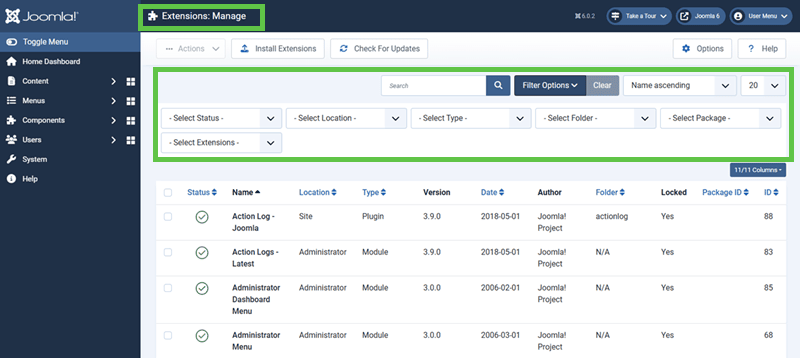
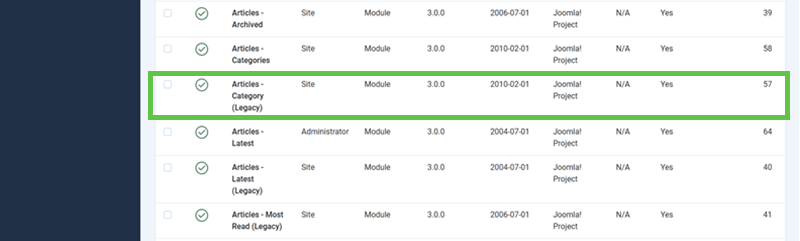
If you find "Legacy" plugins or modules, these are planned for removal. To get a headstart when this happens, I generally recommend disabling them from the start. Simply select them and click the Unpublish button at the top, or click on the "Checkmark" to disable it.
Unpublishing vs Uninstalling
Early in a project, unpublishing is safer than uninstalling.
Unpublishing:
- Reduces clutter
- Prevents accidental use
- Is easily reversible
Uninstalling removes functionality and may affect future decisions. That step is better taken once site requirements are fully understood.
Establishing a Clean Starting Point
By completing this early clean-up, you create an admin environment that:
- Is easier to learn
- Reduces accidental configuration changes
- Reflects the actual direction of the site
This foundation makes later tutorials—menus, templates, access control—far easier to apply correctly.
Verify Your Results
- The admin dashboard shows only useful panels
- Post-installation messages have been reviewed and hidden
- Unused extensions are disabled, not removed
- The Components menu reflects expected site features
Common Issues
- Uncertainty about what to disable: Disable conservatively and document decisions.
- Features needed later: Re-enable published extensions as required.
- Over-cleaning: Avoid uninstalling core features prematurely.
Related Tutorials / Next Steps
- Initial Joomla Configuration After Installation
- Understanding Permissions with Joomla Access Control
Starting with a clean administrator interface helps new site owners learn Joomla with confidence. When unnecessary distractions are removed early, the system becomes easier to understand and safer to manage.
Key Terms
- Administrator dashboard
- The main control panel shown after logging into Joomla, composed of configurable admin modules.
- Unpublished
- A state where a module, plugin, or feature is disabled but remains installed and available for future use.
- Post-installation messages
- System notifications shown after installation to guide setup and highlight important information.