
Venturer includes eight module positions that allow you to display navigation, search, additional content, and footer information throughout your Joomla website.
This tutorial explains where these positions appear, how to assign modules to them, and how to manage their visibility using Joomla's module settings.
Understanding Module Positions
In Joomla, modules are used to display content or functionality outside the main article or component area. Examples include navigation menus, search forms, custom HTML content, and other website features.
Each module is assigned to a template position that determines where it appears on your website.
Venturer provides the following positions:
- menu: Displays the primary website navigation and supplies the menu content for the mobile navigation panel.
- panel: Displays additional content within Venturer's side panel, beneath the website branding.
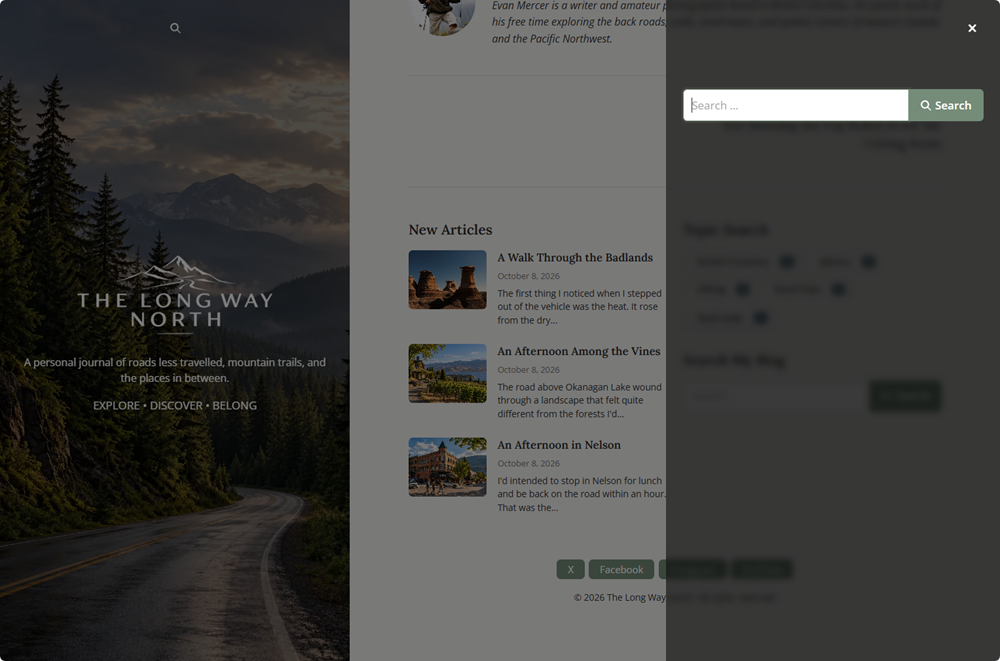
- panel-search: Displays the search module inside Venturer's expandable search panel.
- bottom-1: Displays content below the main page content in the first bottom position.
- bottom-2: Displays content below the main page content in the second bottom position.
- footer-1: Displays content in the first footer position.
- footer-2: Displays content in the second footer position.
- footer-3: Displays content in the third footer position.
Step 1: Open Joomla Site Modules
To create or manage modules assigned to Venturer:
- Log in to your Joomla administrator area.
- From the administrator menu, select Content > Site Modules.
- You'll see a list of modules currently configured for your website.
Existing modules can be edited by clicking their titles. To create a new module, click New and select the type of module you want to use.
Step 2: Assign a Module to a Venturer Position
- Open an existing module or create a new one.
- Enter a descriptive module title.
- Locate the Position setting.
- Select the appropriate Venturer position, such as
panelorbottom-1. - Set the module status to Published.
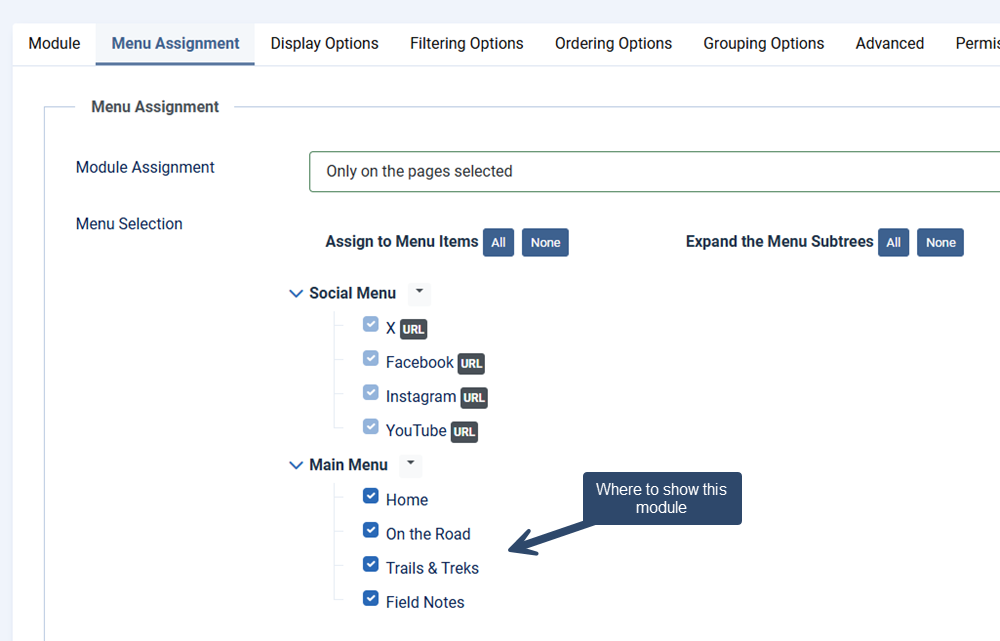
- Open the Menu Assignment tab and choose the pages where the module should appear.
- Click Save & Close.
Open your website's frontend to confirm that the module appears in the intended location.
Note: A module's position determines where it can appear, while its menu assignment determines which pages are allowed to display it.
Configuring the Main Navigation
Venturer uses the menu position for its primary website navigation.
To configure navigation:
- Open Content > Site Modules.
- Create or edit a Joomla Menu module.
- Select the menu you want to display.
- Assign the module to the
menuposition. - Publish the module and configure its menu assignments.
- Save your changes.
Venturer uses the same menu position for its desktop navigation and mobile off-canvas navigation panel.
The mobile navigation button is displayed when the menu position contains an available module.
Adding Content to the Side Panel
The panel position allows you to display additional content beneath your website's branding in Venturer's persistent side panel.
For example, you could use a Custom module to display a short introduction, announcement, or other supplementary information.
- Create or edit a Joomla module.
- Assign it to the
panelposition. - Configure the module content and menu assignments.
- Publish the module and save your changes.
If no published modules are available for this position, Venturer does not render the additional panel content area.
Configuring the Panel Search
Venturer includes an expandable search panel that visitors can open using the search button near the website branding.
To use this feature, you must assign a suitable Joomla search module to the panel-search position.
- Open Content > Site Modules.
- Create or edit a Joomla Smart Search module.
- Assign it to the
panel-searchposition. - Publish the module and configure its menu assignments.
- Save your changes.
- Navigate to System > Site Template Styles and open your Venturer template style.
- Select the Side Panel tab.
- Set Show Panel Search to Yes and save your settings.
Both conditions must be met for the search interface to appear: the search feature must be enabled in Venturer, and a published module must be available in the panel-search position.
If you disable Show Panel Search, Venturer hides the search interface even if a module remains assigned to the position.
Using the Bottom Module Positions
Venturer includes two module positions below the main page content:
bottom-1bottom-2
These positions are useful for supplementary content, announcements, or other information that you want visitors to see after the main page content.
Venturer automatically adjusts the bottom module area according to whether one or both positions contain available modules.
If neither position contains a module, the bottom module area is not displayed.
Using the Footer Module Positions
Venturer provides three footer module positions:
footer-1footer-2footer-3
These positions can be used for supplementary navigation, website information, custom content, and other footer elements.
Each position is displayed only when it contains an available module.
Venturer also includes built-in copyright information that is configured through the template's Branding tab. You do not need to create a separate module for this information.
Controlling Module Visibility
Joomla allows you to control which pages display a module through its Menu Assignment settings.
For example, you might display a particular module on the homepage while using a different module on article pages.
When configuring a module, review its Menu Assignment tab and choose the appropriate visibility option.
Remember that a module must be published, assigned to the correct position, and permitted to display on the current page before it can appear.
Troubleshooting
My module isn't appearing
Confirm that the module is published, assigned to the correct Venturer position, and enabled for the page you're viewing through its Menu Assignment settings.
The mobile navigation isn't appearing
Check that a published Menu module is assigned to the menu position and is available on the current page.
The panel search button is missing
Confirm that a published search module is assigned to panel-search and that Show Panel Search is enabled in Venturer's Side Panel settings.
The bottom module area isn't visible
Venturer displays the bottom module area only when at least one module is available in bottom-1 or bottom-2.
What's Next?
Now that you understand Venturer's module positions, you can use them to organize navigation and supplementary content throughout your website.
For more information about configuring the template's article and page presentation options, continue with the Configuring Venturer Publishing Options tutorial.