
Venturer includes optional features that allow you to control author biography visibility, integrate Google Analytics, and enable Bootstrap CSS compatibility when needed.
These settings are available through the Features and Compatibility tabs in the Venturer template configuration. This tutorial explains what each option does and how to configure it for your Joomla website.
Step 1: Open the Venturer Features Settings
- Log in to your Joomla administrator area.
- Navigate to System > Site Template Styles.
- Click your Venturer template style to open its configuration.
- Select the Features tab.
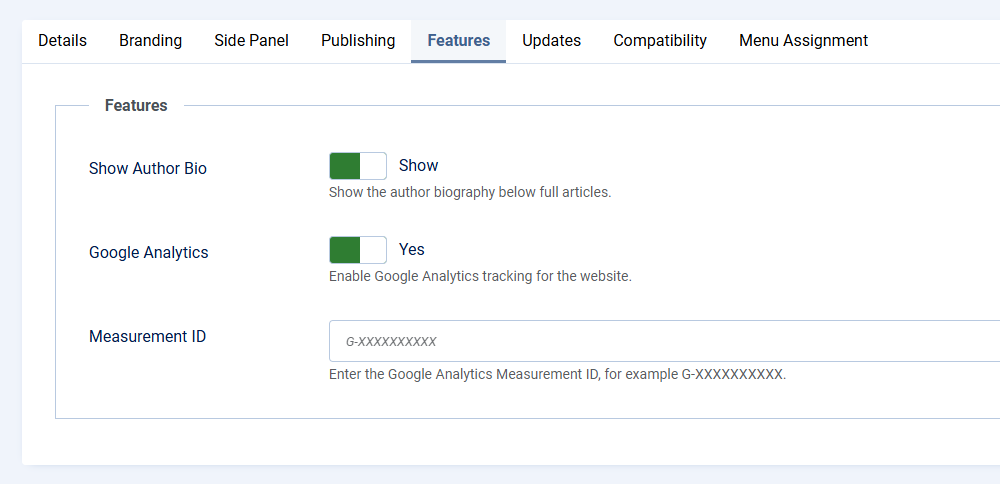
The Features tab includes options for displaying author biographies and enabling Google Analytics integration.
Step 2: Configure Author Biography Visibility
Venturer supports displaying author biography information within its supported article layouts. This can be useful for websites with multiple contributors or authors who want to provide additional information about themselves.

The Show Author Bio setting allows you to enable or disable this feature.
- Locate the Show Author Bio setting.
- Select Show to enable author biographies or Hide to disable them.
- Click Save to apply your changes.
Author biography display is enabled by default.
Note: Enabling this setting does not automatically create biography content. The relevant author information must be available in Joomla for Venturer to display it.
Step 3: Enable Google Analytics
Venturer includes built-in support for Google Analytics 4 (GA4), allowing you to add your Google Analytics Measurement ID without manually editing the template files.
Before enabling this feature, you will need a Google Analytics account and a GA4 web data stream configured for your website.
Find Your Measurement ID
- Sign in to your Google Analytics account.
- Open the Admin area.
- Under your property settings, navigate to Data Streams.
- Select the web data stream associated with your website.
- Copy the Measurement ID, which begins with
G-.
Configure Google Analytics in Venturer
- Return to the Features tab in your Venturer template settings.
- Set Enable Google Analytics to Yes.
- Enter your Measurement ID in the Google Analytics ID field.
- Click Save & Close.
When enabled with a valid Measurement ID, Venturer automatically includes the Google Analytics tracking script in the website's page output.
Google Analytics is disabled by default.
Step 4: Verify Google Analytics
After saving your settings, open your website's frontend and visit a few pages.
You can use Google Analytics Realtime reports or Google's Tag Assistant to check whether tracking is working.
Keep in mind that analytics data may not appear immediately, and browser privacy settings or tracking protection may prevent some visits from being recorded.
Privacy consideration: Depending on your location and audience, you may need to obtain visitor consent before loading analytics scripts. Venturer's built-in Google Analytics setting does not provide a consent-management system. Make sure your analytics configuration complies with applicable privacy requirements.
Step 5: Open the Compatibility Settings
Venturer is designed with its own styling system and does not require Bootstrap CSS for its primary layout.
However, some Joomla extensions or custom content may rely on Bootstrap styles. Venturer provides an optional setting to load Bootstrap CSS when needed.
- Open System > Site Template Styles.
- Select your Venturer template style.
- Open the Compatibility tab.
Step 6: Enable Bootstrap CSS When Needed
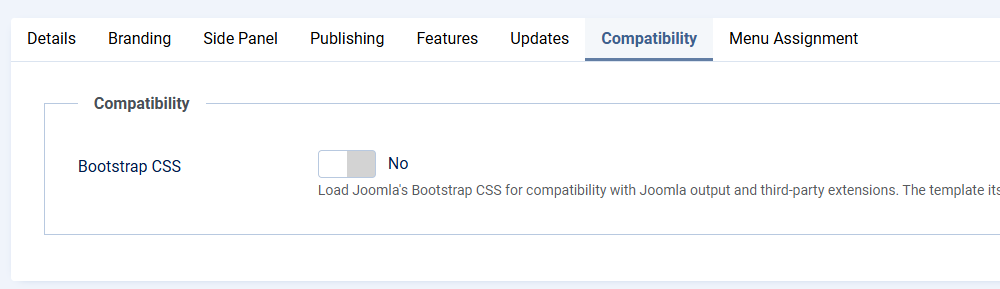
The Bootstrap CSS setting controls whether Venturer requests the Bootstrap stylesheet through Joomla's Web Asset Manager.
Bootstrap CSS is disabled by default.
- Locate the Bootstrap CSS setting.
- Select Yes to enable Bootstrap styling.
- Click Save & Close.
- Open your website's frontend and review the affected pages.
When enabled, Bootstrap CSS is loaded alongside Venturer's own stylesheet.
This may help with extensions or content that depend on Bootstrap classes, but it can also introduce styling differences or conflicts.
Recommendation: Leave Bootstrap CSS disabled unless your website requires it. If you enable it, check your navigation, forms, buttons, modules, and article layouts to make sure everything still displays correctly.
Troubleshooting
Author biographies aren't appearing
Confirm that Show Author Bio is enabled and that the relevant author information is available. Biography display also depends on whether the current article layout supports the feature.
Google Analytics isn't recording visits
Check that Google Analytics is enabled and that your Measurement ID is entered correctly. The ID should begin with G-.
Use Google Analytics Realtime reports or Tag Assistant to verify the tracking script. Also check whether consent settings, browser extensions, or privacy protections are blocking tracking.
My website looks different after enabling Bootstrap CSS
Bootstrap may introduce styles that affect existing elements. If you notice unwanted changes, return to the Compatibility tab and disable Bootstrap CSS.
If an extension requires Bootstrap, you may need additional styling adjustments to resolve conflicts.
What's Next?
You've now explored Venturer's main configuration options, including branding, side panel settings, publishing controls, optional features, and compatibility settings.
For additional information about organizing content around the template, see the Understanding Venturer Module Positions tutorial.
You can also visit the Venturer demonstration website to explore its layouts and see how different content types are presented.