
Welcome to Venturer, a Joomla 6 template from GeJay Media. This guide introduces the template's layout, configuration options, and essential settings to help you get started with your website.
Venturer combines a distinctive side panel with a content-focused layout, making it suitable for websites featuring articles, photography, travel stories, and other published content.
Before You Begin
Before configuring Venturer, make sure you have:
- Installed the Venturer template on your Joomla 6 website.
- Set Venturer as your default site template style.
- Administrator access to your Joomla website.
If you haven't installed the template yet, follow the How to Install a GeJay Media Joomla Template tutorial before continuing.
Step 1: Open the Venturer Template Settings
- Log in to your Joomla administrator area.
- From the administrator menu, select System.
- Under Templates, select Site Template Styles.
- Click your Venturer template style to open its configuration.
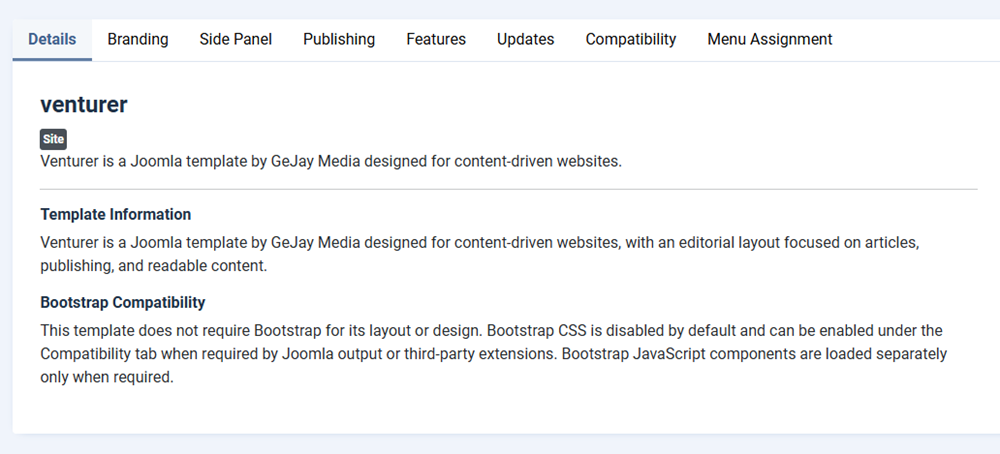
The template settings are organized into tabs, allowing you to configure different aspects of your website.
Step 2: Understand Venturer's Layout
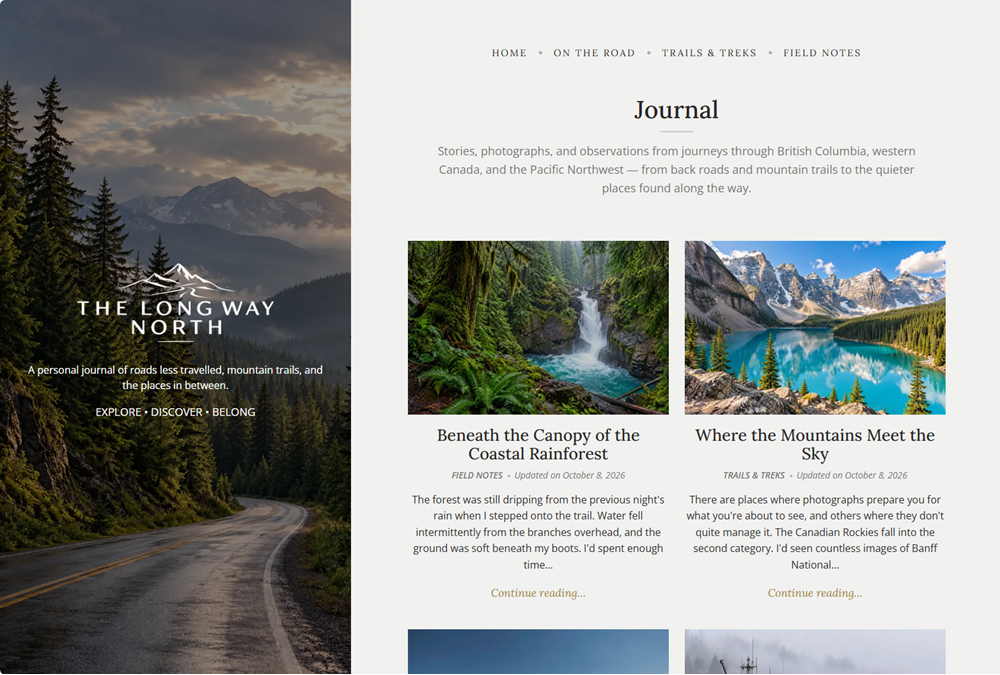
Venturer uses a distinctive side-panel layout that remains present throughout the website. The panel provides a consistent visual element while the main content area displays your articles, category pages, and other Joomla content.
The side panel supports a background image, customizable colours, an image overlay, and an optional search feature. Separate image settings are available for desktop and mobile layouts.
Venturer also includes module positions for navigation, additional content, and footer elements.
Step 3: Explore the Configuration Tabs
Venturer provides several configuration tabs, each responsible for a different group of settings.
Branding
Configure your website logo, a short site description, and the copyright name displayed by the template.
Side Panel
Customize the panel's desktop and mobile background images, background and text colours, overlay colour and opacity, and search visibility.
Publishing
Control the length of blog introduction text and configure introductory content for several Joomla views, including featured articles, tags, archives, login, registration, and search pages.
Features
Enable or disable the author biography display and configure optional Google Analytics integration.
Updates
Enter your GeJay Media update key to authorize eligible template updates through Joomla's extension update system.
Compatibility
Enable optional Bootstrap CSS support when needed for compatibility with extensions or content that relies on Bootstrap styling.
The template also includes a Details tab containing general template information and a Menu Assignment tab for Joomla's template-style assignments.
Step 4: Configure Your Branding
We recommend beginning with your website's branding.
- Open the Branding tab.
- Select your website logo using the media field.
- Enter a short site description if you want one displayed.
- Enter the name you want used for the website's copyright information.
- Click Save to apply your changes.
For more detailed instructions, see the Configuring Venturer Branding and the Side Panel tutorial.
Step 5: Configure Your Side Panel
The side panel is one of Venturer's defining features and appears throughout your website.
Open the Side Panel tab to select your background images, adjust colours and overlay opacity, and choose whether to display the panel search feature.
You can preview your changes on the frontend and adjust the settings until the panel complements your website's content and branding.
Step 6: Review Your Publishing Settings
Open the Publishing tab to review the available content presentation settings.
The blog introduction limit controls the amount of introductory text used by supported blog layouts. The additional introduction fields allow you to provide descriptive text for selected Joomla pages.
These settings are optional and can be configured as you build your website.
Step 7: Activate Template Updates
To receive eligible Venturer updates through Joomla, enter your GeJay Media update key in the Updates tab.
If you haven't configured your key, follow the Activating Template Updates with Your Update Key tutorial for instructions on retrieving it from your GeJay Media membership and saving it in Venturer.
Configuring Your Homepage
Venturer uses Joomla's standard menu system to determine what appears on your website's homepage. You can choose from several Joomla menu item types, including Featured Articles, Category Blog, and Single Article.
For example, the Venturer demonstration website uses a Category Blog layout linked to its parent blog category. This allows visitors to browse articles directly from the homepage.
To change your homepage, open your main menu in the Joomla administrator area, create or edit the appropriate menu item, and assign your preferred menu item type. Make sure the intended homepage menu item is set as the default.
The demonstration website's configuration is only an example. You can choose whichever homepage layout best suits your content.
What's Next?
Once you've explored the Venturer settings, continue with the following tutorials to configure the template in greater detail:
- Configuring Venturer Branding and the Side Panel
- Understanding Venturer Module Positions
- Configuring Venturer Publishing Options
- Managing Venturer Features and Compatibility
You can also explore the Venturer demonstration website to see examples of its layouts and content presentation.