
Venturer provides several customization options to help you establish your website's visual identity. From your logo and site description to the distinctive side panel, these settings allow you to personalize the template without editing its source code.
This tutorial explains how to configure Venturer's branding settings, choose side panel images, adjust colours and overlays, and control the panel's search feature.
Before You Begin
Make sure Venturer is installed and activated on your Joomla 6 website. You should also have your website logo and any images you plan to use for the side panel ready to upload.
For an overview of the template, see the Getting Started with Venturer tutorial.
Step 1: Open the Venturer Template Settings
- Log in to your Joomla administrator area.
- Navigate to System > Site Template Styles.
- Click your Venturer template style to open its configuration.
- Select the Branding tab.
Step 2: Configure Your Website Branding
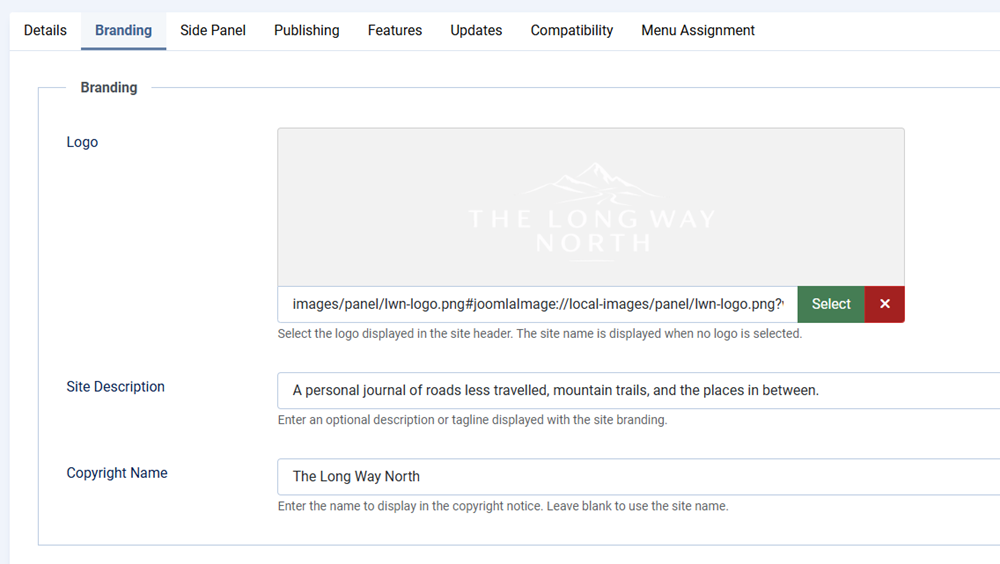
The Branding tab contains three settings that control how your website is identified within the template.
Logo
Use the logo field to select an image from Joomla's Media Manager or upload a new logo.
- Click the media selection button beside the logo field.
- Choose an existing image or upload your logo.
- Confirm your selection.
For best results, use a logo with a transparent background where appropriate. Make sure the logo remains legible against the surrounding template colours.
Site Description
Enter a short description that identifies your website or explains its purpose. This text appears in the template's branding area beneath the logo.
A concise description generally works best. Avoid lengthy paragraphs that could overwhelm the available space.
Copyright Name
Enter the name you want displayed in your website's copyright information, such as your website name, business name, or organization.
Once you've configured these settings, click Save to apply your changes.
Step 3: Configure Your Side Panel Images
Venturer features a side panel that remains part of the website layout across its pages. The panel can display background imagery that complements your website's content and branding.
Select the Side Panel tab to access its configuration options.
Desktop Panel Image
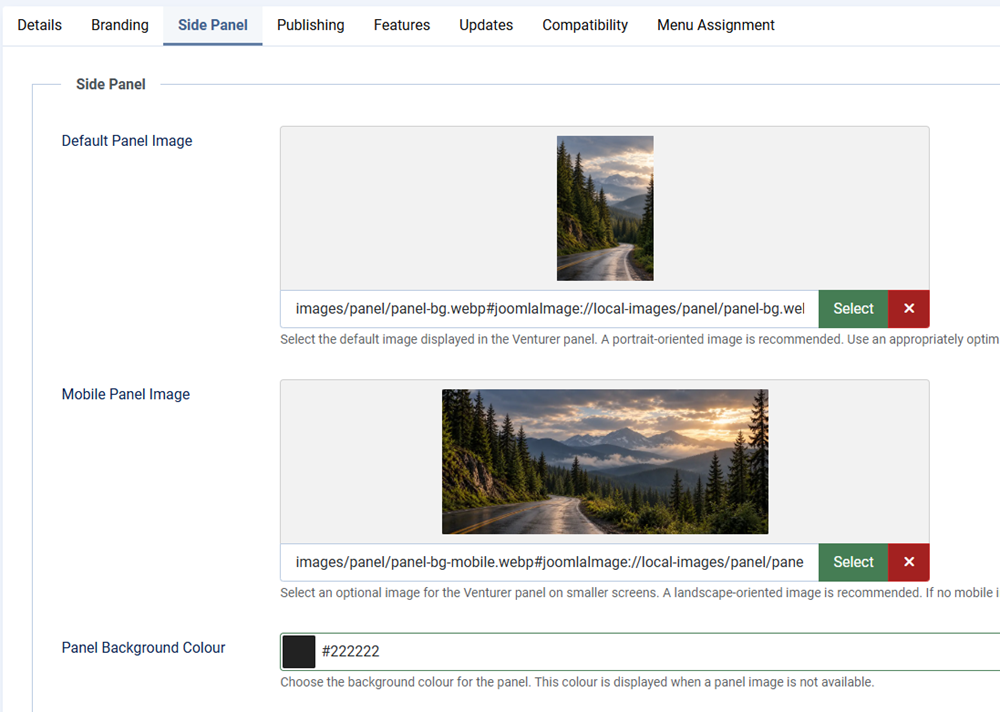
Use the panel image field to select the background image displayed in the desktop side panel.
- Click the media selection button for the panel image.
- Select an existing image or upload a new one.
- Confirm your selection.
Images with a clear subject and sufficient space around important details generally work well. Keep in mind that the image may be cropped depending on the visitor's screen size and the panel's dimensions.
Mobile Panel Image
Venturer also provides a separate image field for mobile layouts.
This allows you to choose an image better suited to smaller screens, where the available space and image proportions may differ from the desktop layout.
You can use the same image for both settings, but selecting a mobile-friendly alternative may improve the presentation on phones and other narrow displays.
Step 4: Adjust the Side Panel Colours
The Side Panel tab includes colour controls for the panel background, text, and image overlay.
Panel Background Colour
This setting defines the panel's background colour. The default is a dark grey (#222222).
Choose a colour that complements your website's branding and provides an appropriate background for the panel's content.
Panel Text Colour
This setting controls the panel's text colour. The default is white (#ffffff).
Choose a colour that remains easy to read against the panel background and any background imagery.
Panel Overlay Colour
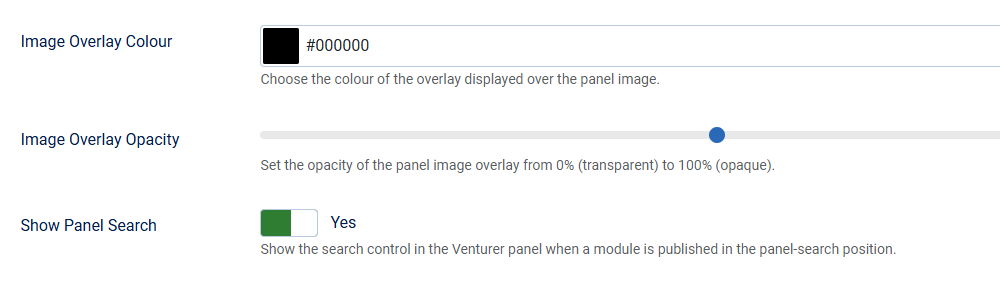
The overlay colour adds a coloured layer over the panel's background image. The default overlay colour is black (#000000).
Overlays can help improve text readability and create a more consistent appearance across different images.
Step 5: Adjust the Overlay Opacity
The Panel Overlay Opacity setting controls how strongly the overlay colour appears over the background image.
The available range is from 0 to 100, with a default value of 40.
- 0: No visible overlay.
- 40: The default overlay strength, allowing the background image to remain visible while adding contrast.
- 100: A fully opaque overlay that conceals the background image.
Adjust the opacity to find a balance between image visibility and text readability. Images with bright or highly detailed areas may benefit from a stronger overlay.
Step 6: Configure the Panel Search Feature
Venturer includes an option to show or hide the search feature within the side panel.
- Locate the Show Panel Search setting.
- Select Yes to enable the feature or No to disable it.
- Click Save to apply your changes.
The search setting is enabled by default.
If you do not want visitors to access search through the side panel, you can disable this option without changing the other panel settings.
Step 7: Preview Your Changes
After configuring your branding and side panel, open your website's frontend to review the results.
Check the following:
- Your logo displays correctly and remains legible.
- Your site description fits comfortably within the branding area.
- Your desktop panel image displays as expected.
- Your mobile panel image works well on smaller screens.
- The overlay provides sufficient contrast for readable text.
- The panel search feature is displayed or hidden according to your preference.
Make any necessary adjustments in the template settings, then save and preview again.
Additional Tips
For a consistent visual appearance, choose panel images and colours that complement your website's content rather than compete with it.
Remember that the side panel appears throughout the website, so an image that works well on one page should also be suitable for other sections.
For more information about the template's layout and available module positions, see the Understanding Venturer Module Positions tutorial.