
Joomla allows you to customize how your website looks by using template styles and menu assignments. These features give you control over which template configuration appears on different pages without requiring you to install multiple copies of the same template.
This tutorial explains how template styles work, how to create additional styles, and how to assign them to specific areas of your Joomla website.
What Is a Template Style?
A template is the collection of files that controls your website's appearance and layout. A template style is a saved configuration of that template's settings.
For example, you might use one style with a particular logo and colour scheme for your homepage and another style with different settings for a separate section of your website.
Both styles use the same installed template files, but each can have its own configuration.
Step 1: Open Site Template Styles
- Log in to your Joomla administrator area.
- From the administrator menu, select System.
- Under Templates, select Site Template Styles.
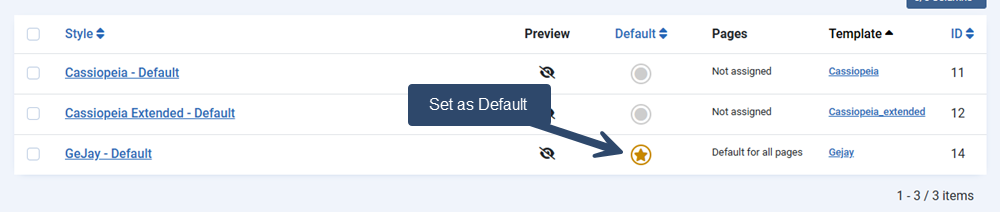
- You'll see a list of the template styles currently available on your website.
Each entry represents a configuration of an installed site template. The default indicator identifies the style Joomla uses when no other template style has been assigned to the requested page.
Step 2: Edit an Existing Template Style
- From the Site Template Styles list, click the name of the style you want to modify.
- Review the available configuration tabs.
- Adjust the settings you want to change.
- Click Save & Close to save your changes.
The settings available depend on the installed template. GeJay Media templates may provide configuration options for branding, layouts, colours, and other features.
Step 3: Create an Additional Template Style
You can create another configuration of an installed template by duplicating an existing style.
- Open System > Site Template Styles.
- Select the checkbox beside the template style you want to duplicate.
- Click Duplicate in the toolbar.
- Open the duplicated style and give it a descriptive name.
- Modify the settings as needed.
- Click Save & Close.
For example, you could create styles named Venturer - Default and Venturer - Special Section to distinguish their purposes.
Duplicating a template style does not create a separate copy of the template files. Both styles continue to use the same installed template.
Step 4: Assign a Template Style to Menu Items
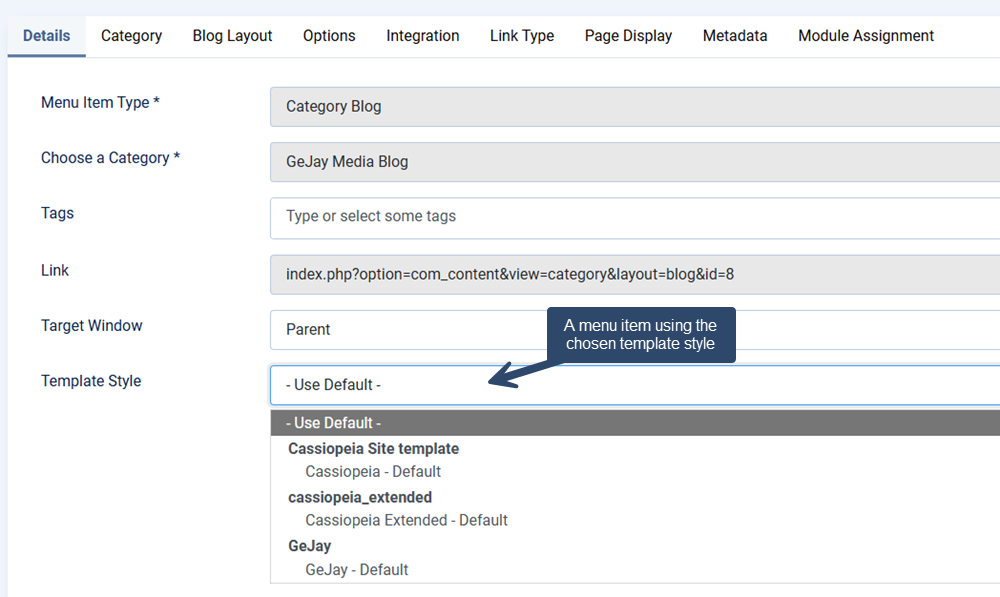
Joomla allows you to assign a template style to specific menu items. This is useful when different sections of your website require different template configurations.
- Open System > Site Template Styles.
- Click the name of the template style you want to assign.
- Select the Menu Assignment tab.
- Choose the menu items that should use this template style.
- Click Save & Close.
Pages associated with the selected menu items will use the assigned template style instead of the website's default style.
Understanding the Default Template Style
Joomla uses the default template style for pages that do not have another style assigned through their menu items.
You can change the default style from the Site Template Styles list by selecting the star in the Default column beside the style you want to use.
Important: Changing the default template style can affect the appearance of multiple pages throughout your website. Review your frontend after making this change.
When Should You Use Multiple Template Styles?
Additional template styles can be useful when you want to:
- Display different branding or logos in particular website sections.
- Use different template configuration settings for selected pages.
- Customize the appearance of a specific menu or section without changing the rest of the website.
For most websites, a single default template style is sufficient. Create additional styles only when you need different configurations.
Troubleshooting
My changes aren't appearing on the website
Confirm that you edited the template style assigned to the page you're viewing. A menu item may use a different style from the website default.
If necessary, clear your Joomla and browser caches before checking again.
A page is using the wrong template style
Review the Menu Assignment tab for your template styles. Check whether the page's menu item has been assigned to another style.
I duplicated a style, but nothing changed
Duplicating a style creates another configuration but does not automatically assign it to any pages. Edit the duplicated style, configure its settings, and assign it to the appropriate menu items.
What's Next?
Now that you understand template styles and menu assignments, you can explore the configuration options available in your GeJay Media template.