
Not all WordPress admin screens carry the same level of risk or responsibility. Some are used daily for content work, while others affect the entire site. Knowing which screens matter most helps you move faster and avoid unintended consequences.
Before You Start
- You should be logged into the WordPress admin area.
- No changes are required while reading this tutorial.
- This guide focuses on understanding purpose and impact.
List Screens vs Edit Screens
Most WordPress sections are divided into two main screen types:
- List screens show multiple items and allow bulk actions.
- Edit screens are used to modify individual items.
List screens are efficient but riskier because actions can apply to many items at once.
Post and Page Edit Screens
The editor screen is where individual posts and pages are created or updated.
Key areas include:
- Content editor (blocks)
- Publish and status controls
- Page or post-specific settings
Changes made here usually affect only the current item, which makes this one of the safer areas to work in.
Media Library Screens
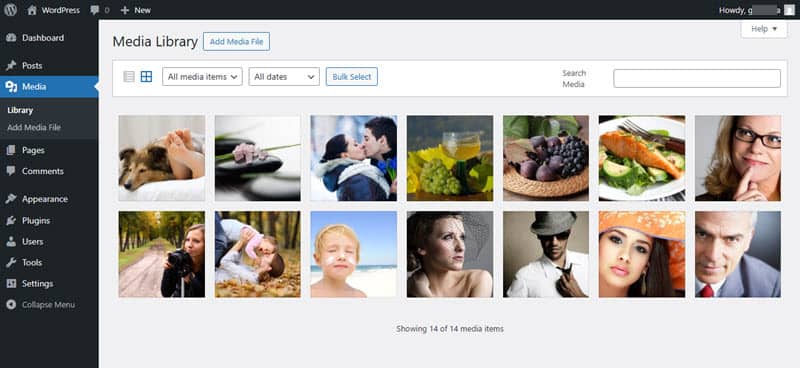
The Media Library can be viewed as a grid or a list.
Important distinction:
- Deleting media removes the file from the entire site.
- Removing media from a post does not delete the file.
This difference is easy to miss and often causes confusion.
Menu Management Screen
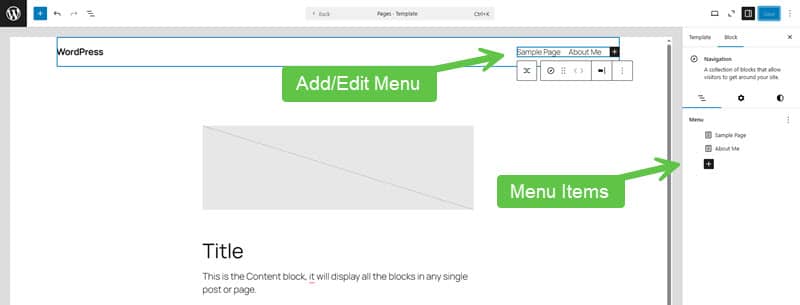
The menu editor controls site navigation and is separate from content editing.
From this screen, you can:
- Add or remove menu items
- Reorder navigation
- Assign menus to locations
Incorrect changes here can make content appear missing even when it still exists. I will expand on this, but in the newer versions of WordPress, you won't find the menu manager under the "Appearance" menu group; you will find it in the content block editor.
Customizer Screen
The Customizer provides a live preview of theme-related changes. Just like the menu screen, you won't find the Customizer under the Appearance menu group either. This is because WordPress is committed to making WordPress into a page builder, while some will describe it as a Squarespace wannabe.
However, if you use an older theme that is not a 100% developed theme, you will see the Customizer under the Appearance menu group. If you are lucky to have this, typical uses include:
- Layout adjustments
- Colour and typography settings
- Header or footer configuration
Changes are often global and should be reviewed carefully before publishing.
Plugin and Theme Screens
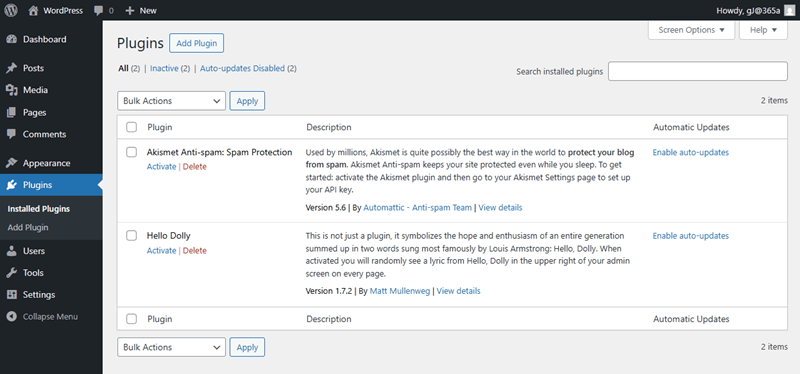
Plugin and theme management screens control activation, updates, and deletion.
Actions here can:
- Change site immediately
- Remove features or layouts
- Trigger compatibility issues
These screens should be approached with intention, not experimentation.
Settings Screens
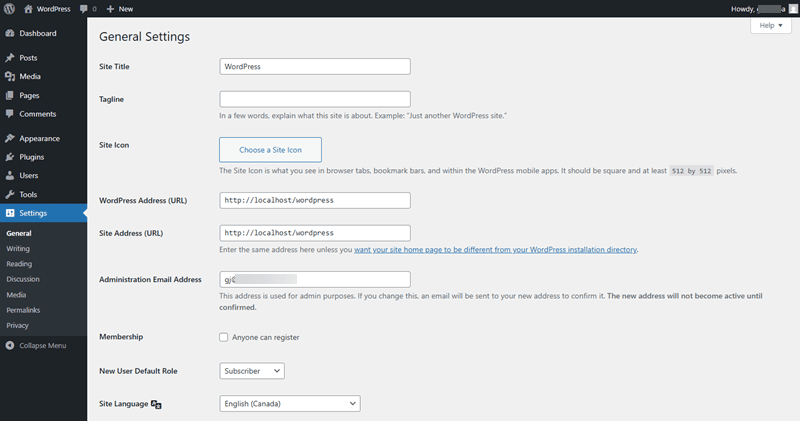
The Settings area contains configuration that affects the entire site.
Some settings, such as site URL or permalink structure, can cause widespread breakage if changed incorrectly.
If you are unsure what a setting does, it is usually best not to change it.
Verify Your Understanding
- You understand the difference between list and edit screens.
- You know which screens affect a single item versus the entire site.
- You recognize which admin areas require the most caution.
Common Issues
- Using bulk actions unintentionally: Affects multiple items at once.
- Deleting media instead of removing it from content: Breaks multiple pages.
- Testing changes in global screens: Causes site-wide impact.
Related Tutorials / Next Steps
- Managing Users and Roles
- Common Admin Mistakes
Understanding which admin screens carry risk allows you to work with confidence instead of caution alone.