
The WordPress dashboard is where all site management happens. Understanding its structure helps you move confidently, find what you need quickly, and avoid changing settings unintentionally.
Before You Start
- You should be logged into the WordPress admin area.
- You do not need to make any changes during this tutorial.
- This guide focuses on orientation and intent, not configuration.
The Admin Menu Structure
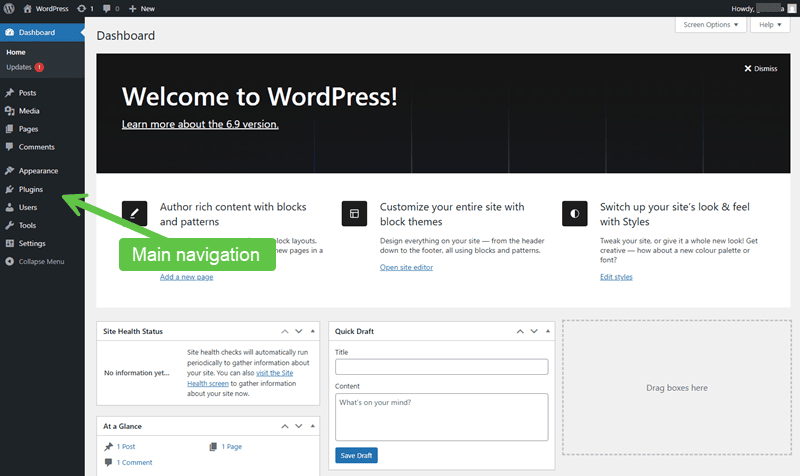
The main navigation for WordPress appears in the left-hand admin menu. Items are grouped by function rather than by task sequence.
At a high level, the menu separates:
- Content management
- Appearance and layout
- Functionality and extensions
- Site-wide configuration
Understanding these groupings reduces trial-and-error clicking, saving you valuable time. However, you still have the choice to adventure around.
Dashboard Home
The Dashboard home screen provides an overview rather than a control center.
It may include:
- Site health notices
- Update reminders
- Plugin or theme messages
Most day-to-day tasks do not start here. It is primarily informational.
Content Areas
Posts and Pages
Posts and Pages are managed separately, even though they may look similar in the editor.
Each section includes:
- A list view
- Filters and search
- Bulk actions
Bulk actions can affect multiple items at once, so they should be used carefully.
Media Library
The Media Library stores images, documents, and other uploaded files.
Deleting media here can affect multiple pages if the same file is reused. Media management is not isolated to a single post.
Appearance
The Appearance section controls the active theme and theme-related settings.
Depending on the theme, this may include:
- Theme selection
- Customizer options
- Menus
- Widgets or layout areas
Changes in this section usually affect the entire site.
Plugins
The Plugins section lists all installed plugins and their status.
From here you can:
- Activate or deactivate plugins
- Update plugins
- Access plugin-specific settings
Deactivating a plugin immediately removes its functionality. This can affect visible site features.
Users
The Users section controls who can access the site and what they can do.
Here you manage:
- User accounts
- Roles and permissions
- Your own profile
Changing roles affects site security and should be done intentionally.
Settings
The Settings section contains site-wide configuration options.
Examples include:
- Site title and URL
- Permalink structure
- Reading and discussion (comment settings)
Changes here can have a global impact. It is not an area for experimentation.
Screen Options and Help
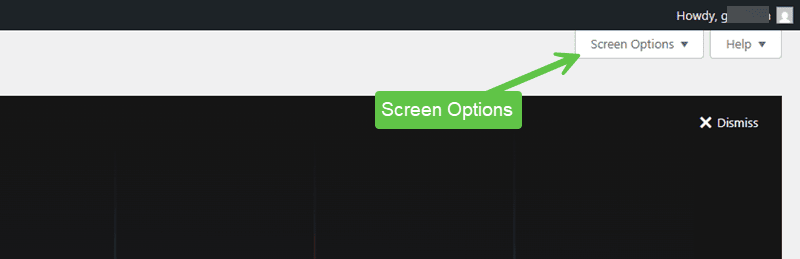
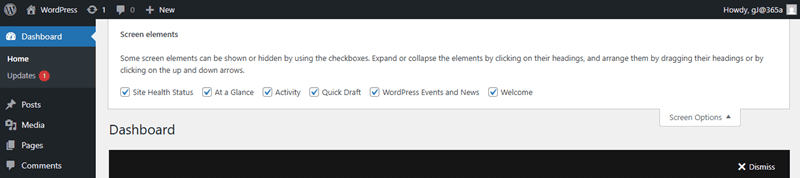
Many admin screens include Screen Options and Help tabs at the top.
They control:
- Which columns are visible
- How many items appear per page
- Contextual help information
These options affect your dashboard view.
Verify Your Understanding
- You know which sections manage content versus configuration.
- You understand which menu areas affect the entire site.
- You recognize where bulk actions can cause unintended changes.
Common Issues
- Changing settings while looking for content: This can lead to unintended global changes.
- Using bulk actions without filters: Affects more items than intended.
- Assuming all menu items are safe to explore: Some areas require caution.
Related Tutorials / Next Steps
- Understanding Key Admin Screens
- Managing Users and Roles
Comfort with the WordPress dashboard reduces hesitation and mistakes. Knowing where things live is often more important than knowing how to change them.